Sunday, December 26, 2010

SharePoint 2010: Branding Step by Step I
Hi..! SharePoint branding followers, this is step by step branding blogging is to help you people out of SharePoint branding issues. What we will be doing is will do complete branding top to bottom. First identifying a wireframe, building it to Photoshop Realistic Design, Converting Design into Working HTML, CSS and jQuery after that testing in Multiple Browsers and last not least Branding with SharePoint Designer 2010.

In SharePoint Designer 2010 we have lots of steps like creating a new master page, page layouts, modifying the CSS and jQuery.

Then creating custom themes with the office client, modifying themes in SharePoint Server. Planning site navigation and using non-SharePoint navigation, breadcrumb navigation and site map providers.

Ok will start our work right now.

Why Plan for Branding?

You guy can jump into SharePoint designer and start creating master pages for SharePoint 2010 but in a project environment that will be a mistake. The process of actually creating a brand in a SharePoint site involves several steps, including creating master pages, page layouts, CSS, and more. By effectively planning your branding before starting it, you have proactively considered exactly what you want to create and how it will be produced. Any adjustments or changes that are discovered during the planning process can be realized with much less effort than having to deal with them inside of SharePoint.

Requirements Analysis

Whether your SharePoint branding project is a site for 10 users or 10,000 users, certain requirements will undoubtedly need to be met. This is why the first step of almost any project, whether it is a SharePoint branding project or not, should be some amount of requirements analysis. Requirements analysis involves gathering and understanding the specific needs of a project. Typically this process includes asking a lot of questions and breaking larger problems into more manageable pieces to gain a better understanding of them.

Targeted Browsers and screen resolution

Another important decision to make is which browsers, operating systems and screen resolution will be targeted by your branding. Although many people may say that a website should support all browsers equally, it is often impractical to test each and every browser for pixel-perfect display. This is why it’s a good idea to decide early what browsers and operating systems will be supported by your SharePoint site. As mentioned earlier, this decision is typically much more important for public-facing Internet sites, for which you have no control over what browser users will be using to access the site. Currently, most web designers consider 1024 × 768 to be the most common screen resolution, followed closely by 1280 × 800.

Creating Wireframes

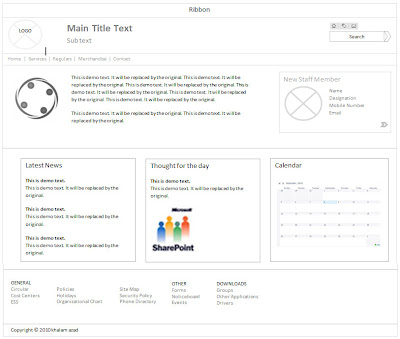
Wireframes are skeletal page designs; they capture the layout and flow of a website without focusing on colors and graphics. Guys, you people might be wondering why you should create a static, black-and-white wireframe when you plan to create a dynamic, full-color website. The major reason for creating wireframes before full-color comps is to ensure that all the stakeholders and decision makers focus on the layout and page flow, rather than get hung up on colour and images of published in site. Below figure shows wireframe that we are going to use for all practice.


I didn’t use any special tool to create the wireframe, it is not a major graphic work the tool I use to create the above wireframe is Microsoft word 2010 . Most of the work is done by Shapes tool under insert tab in the ribbon. I used the basic shapes and rectangle shapes to get above output. Below figure shows microsoft word tools used to create the wireframe.


Looking at the wireframes, note that not every single piece of SharePoint 2010 functionality is going to be included on this site. When creating wireframes for your SharePoint site, consider that not all of this functionality needs to be supported in your SharePoint branding. Also, it is important to remember all the different types of content that are supported in SharePoint 2010. Below figure shows the default SharePoint user interface (based on v4.master), with each of the major areas of functionality labeled.


The following table describes each of these major functional areas:

Monday, December 6, 2010

What is SharePoint 2010 Branding?

brand as a "name, term, sign, symbol or design, or a combination of them intended to identify the goods and services of one seller or group of sellers and to differentiate them from those of other sellers.

The companies have chosen a marketing identity that enables the public to quickly and easily recognize them. This is branding. When referring to websites, branding usually involves the colors, fonts, logos, and supporting graphics that make up the general look and feel of the website.

The objectives that a excellent brand will achieve include:

1. Delivers the message clearly
2. Confirms your credibility
3. Connects your target prospects emotionally
4. Motivates the buyer
5. Concretes User Loyalty

Branding for SharePoint

Branding for SharePoint is similar to branding for any other sites, except that branding for SharePoint includes the master pages, page layouts, Cascading Style Sheets (CSS), jquery, Web Parts and eXtensible Stylesheet Language Transformations (XSLT).

Basically sharepoint 2010 will look like this:


    Definition of Branding

    The most common reason to brand a SharePoint site is to make it unique. Out of the box, SharePoint 2010 is not visually help you started. In fact, its look and feel is intentionally bland, as it is assumed that most companies are going to customize it. Indeed, making it “not look like SharePoint” is a basic request.

    Themes

    themes can be changes that are applied to the existing look and feel through the use of CSS. In SharePoint 2007, themes played a similar function, but behind the scenes, they worked completely differently than they do in SharePoint 2010.

    In SharePoint 2010, themes are created with the Microsoft Office client software (2007 and above),using PowerPoint to create .THMX files that describe the 12 theme colors and two fonts available in the new SharePoint themes. Once created with Office, they can be loaded into SharePoint 2010 and applied to any site by site owners.


    Along with the capability to create themes in the Office client, the Server version of SharePoint 2010 enables site owners to modify the themes — i.e., the colors and fonts — directly in the SharePoint Web user interface the changes can be viewed immediately.

    further details about THEME you can go to below link:
    http://erikswenson.blogspot.com/2010/01/sharepoint-2010-themes.html

    Master Pages

    I have discussed about master pages in same blog in title of "SharePoint 2010: Master Pages" on july 29, 2010 before brifly and this is my favorite part in sharepoint 2010. this time will comes with a few out-of-the-box master pages that can be used for website branding right away. The following list describes some of the more important out-of-the-box master pages:

    v4.master — This is the default master page that is used for many of the site templates used by SharePoint 2010, and is the page shown earlier.

    nightandday.master — This master page is accessible only in a SharePoint Server 2010 site that has the Publishing Feature enabled. Unlike v4.master (which is geared toward intranet sites), this master page is styled in a more simplistic way and is more appropriate for an Internet site. Because the underlying code for the master page is well organized, this can be a good place to look when you are first learning about master pages.


    minimal.master — This master page is used only on pages that have their own navigation or need extra space (such as dedicated application pages or the search center). Unlike the concept of minimal master pages in SharePoint 2007, this master page is not intended to be the starting point for branding, as it lacks several common SharePoint controls.

    Cascading Style Sheets

    CSS is pervasive in SharePoint branding. Almost every aspect of SharePoint is styled by CSS. All the SharePoint controls that are loaded by a master page are styled by CSS, as well as many Web Parts — even SharePoint themes apply to specially commented CSS fi les in SharePoint 2010. Because of the importance of CSS in SharePoint, a sound understanding of it is crucial to becoming skilled at branding in SharePoint.

    further details about CSS you can go to below link:
    http://www.w3schools.com/css

    Content Pages

    there are three main types of content pages in SharePoint Server 2010:

    1. Publishing pages (SharePoint Server 2010 only)
    2. Web Part pages
    3. Wiki pages

    Each type of page has different options and a different intended use, so your functional requirements will dictate which page is right for each scenario.